> ## Documentation Index
> Fetch the complete documentation index at: https://docs.autonudge.dev/llms.txt
> Use this file to discover all available pages before exploring further.
# The contact page
> One contact, every field and every touch
Click any contact name anywhere in the app to open its page. The URL is shareable, so you can paste a contact link to a colleague.
 ## Left: the record
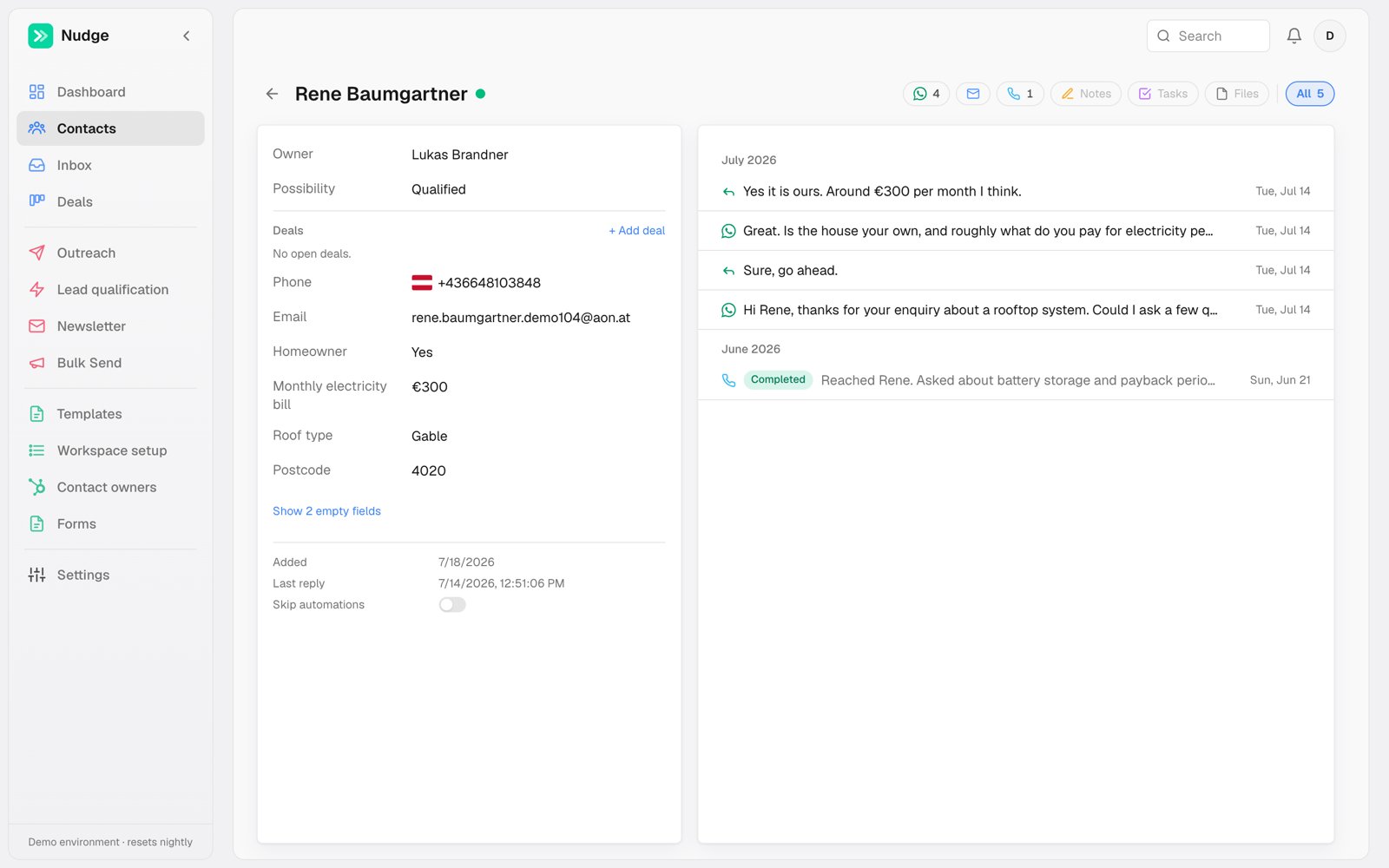
All fields from your [fields registry](/settings/workspace) are editable in place: owner, possibility, phone, email and any custom fields like budget or roof type. Changes save as you go; there is no Save button. Empty fields collapse behind a "Show empty fields" link.
Below the fields:
* **Deals** shows the contact's open deals, with an add button.
* **Skip automations** exempts this one contact from every trigger. Use it for the lead who asked you to stop, or the edge case you want to handle by hand.
## Right: the timeline
Everything that happened, newest first: WhatsApp messages both ways, AI call summaries with their outcome, emails, notes, tasks and files. The icons top right filter by channel. **Place call** starts an AI call to this contact right now, pre-filled with the owner's default agent and number.
When a message is queued but not yet sent, the timeline shows a real estimated send time that accounts for the sending number's queue, not a generic countdown.
## Left: the record
All fields from your [fields registry](/settings/workspace) are editable in place: owner, possibility, phone, email and any custom fields like budget or roof type. Changes save as you go; there is no Save button. Empty fields collapse behind a "Show empty fields" link.
Below the fields:
* **Deals** shows the contact's open deals, with an add button.
* **Skip automations** exempts this one contact from every trigger. Use it for the lead who asked you to stop, or the edge case you want to handle by hand.
## Right: the timeline
Everything that happened, newest first: WhatsApp messages both ways, AI call summaries with their outcome, emails, notes, tasks and files. The icons top right filter by channel. **Place call** starts an AI call to this contact right now, pre-filled with the owner's default agent and number.
When a message is queued but not yet sent, the timeline shows a real estimated send time that accounts for the sending number's queue, not a generic countdown.